Guide — bulk workflow
Download all SVGs on a page as a ZIP
Grabbing icons one at a time is fine for one icon. When you want the whole set — every logo, glyph and illustration on a page — SVG Downloader scans the DOM and hands you a single ZIP of numbered, de-duplicated files.
The task
Save every SVG on a website at once
A single page can hold dozens of SVGs — a header logo, a nav full of icons, feature glyphs, social buttons, a footer mark. Saving them by hand means finding each one, working around inline markup and CSS backgrounds, repairing namespaces and inventing filenames. Do that thirty times and you've lost an afternoon.
The bulk workflow collapses all of it into one click. You point SVG Downloader at the page, it collects everything vector on it, and it writes the lot to a ZIP. The steps below are the whole procedure.
Step by step: page to ZIP
- Install and open the popup. Add the free extension to Chrome, Edge or Brave, open the page you want, and click the SVG Downloader toolbar icon. Everything runs locally — nothing about the page is uploaded.
- Let it scan. The extension walks the entire DOM and gathers all four SVG sources: inline
<svg>elements,<img>and<object>vectors includingdata:URIs, CSSbackground-imageSVGs, and same-document<use>sprite references. You can step through them with Previous/Next to confirm the haul. - Click "Download All as ZIP". Instead of saving one file, this packs the full collection into a single archive. Duplicated icons are collapsed to one copy on the way in, so the archive reflects the set, not the page's raw element count.
- Open the archive. Inside you get real
.svgfiles, numberedsvg-1.svgupward in the order they were found, each with a missingxmlnsrepaired so it opens in Figma, Illustrator or VS Code without editing. Prefer a different prefix? Set it once in the extension's options and every archive follows it.
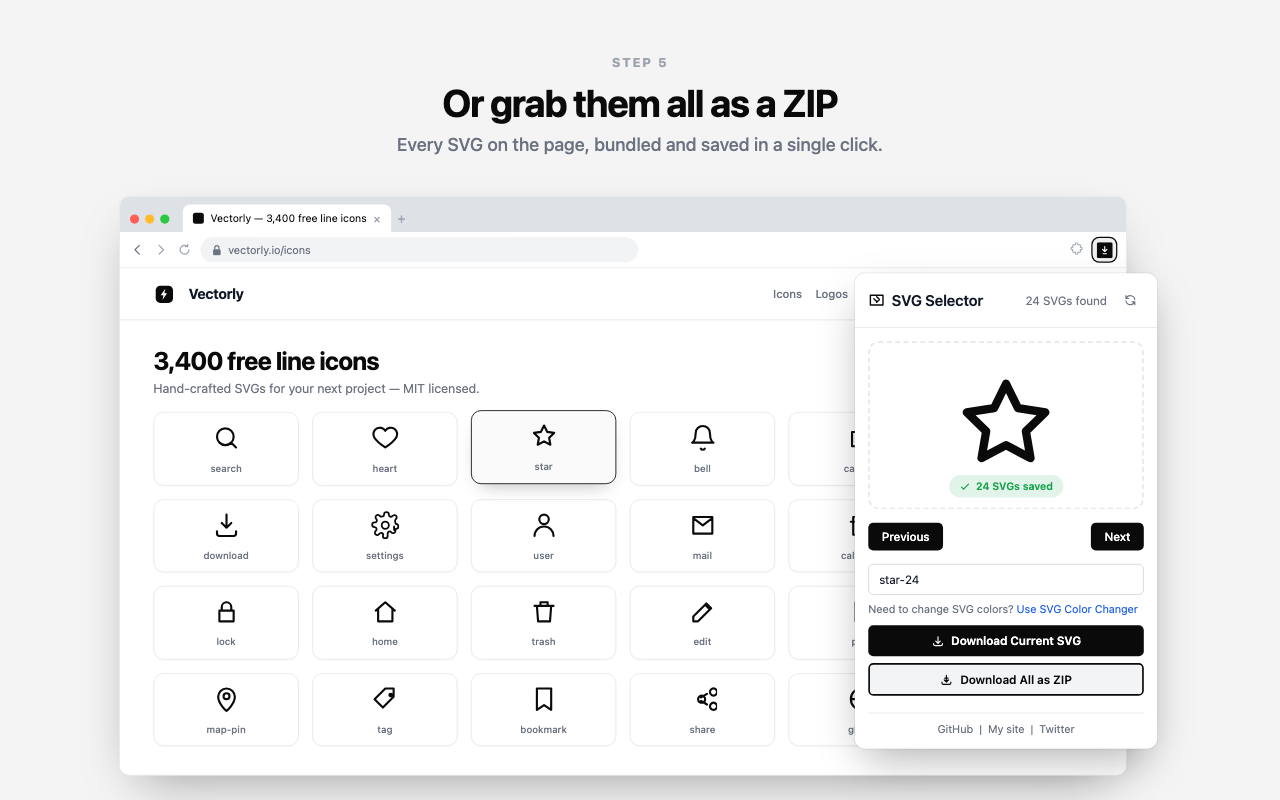
Download All as ZIP collects the page's SVGs and de-duplicates the set before packing it.What's inside the ZIP
- Numbered files
svg-1.svg,svg-2.svgin page order — with a prefix you choose in options, so the set arrives asacme-1.svgif you'd rather.- De-duplicated
- Icons that repeat across the page are saved once. The archive is the icon set, cleaned of copies.
- Original markup
- Every file is the vector that was in the page — paths and
viewBoxpreserved, namespace repaired. Not a re-render. - Skips surfaced
- The popup names anything that couldn't be resolved — usually a blocked cross-origin file or an external sprite — so nothing goes missing silently.
Which button
ZIP vs. single download
Both buttons live in the same popup. Reach for the one that matches the job.
- Download All as ZIP — when you want the whole set, are rebuilding an icon library, or are auditing what a site actually ships. One click, one archive, no repetition.
- Download Current SVG — when you've previewed one specific icon with Previous/Next and only need that file. No archive, just the single
.svg.
The bulk path is documented in full on the whole-page ZIP feature page. If you're chasing one stubborn icon instead, the extract SVG icons guide walks the single-file route.
Good to know
Questions about bulk ZIP download
Does the ZIP include duplicate icons?
No. SVG Downloader de-duplicates before packing, so a logo or icon that repeats across the page is saved once rather than fifty times. You get a clean set, not the page's raw count.
What happens to SVGs that could not be saved?
The popup's status line names them by their position in the preview list — Downloaded 8 of 10 SVGs. Skipped: 3, 7. Common causes are a blocked cross-origin file, or a <use> reference pointing at an external sprite file, which isn't resolved. The successful files still download; the archive holds only those, and the status line tells you what was left out.
Should I use the ZIP or download a single SVG?
Use Download All as ZIP when you want the whole icon set or are auditing a site. Use Download Current SVG when you have previewed one specific icon and only need that file.
Take the whole page in one click
Free, private, and it collapses a page of icons into one tidy ZIP.